"Search Google or Type a URL": What It Means & Why It's Changing in 2026
You open a new browser tab. There's a bar at the top, and inside it, a small line of grey text: "Search Google or type a URL." Most people glance at it and start typing. A few people pause and wonder what it actually is, whether something's broken, or whether they're supposed to do something specific.
Nothing's broken. The bar is doing two jobs at once: search or type URL, that's all it's asking. You can search the web by typing words or a question, or you can go straight to a website by typing its address. That's the whole feature.
But that little box has quietly become the most contested piece of real estate on the internet. In the last 18 months, Google added AI Mode directly into Chrome's address bar, Microsoft pushed Copilot into Edge's, and Apple, Brave, and Perplexity all redesigned how the bar handles search and AI together.
The phrase didn't change. What happens when you type into it has changed a lot.
This guide covers what "Search Google or type a URL" actually means, how the omnibox decides whether you're searching or navigating, what to do when it gets confused, how to fix the four browsers people actually use, and the part nobody else is writing about: how AI search is reshaping the bar in 2026 and what that means for anyone running a website.
What Does "Search Google or Type a URL" Mean? (Quick Answer)
What Does "Search Google or Type a URL" Mean? (Quick Answer)
Whether you see 'search Google or type a URL' or the shorter 'search Google or type URL,' the meaning is the same: the bar at the top accepts two kinds of input. Type a website address (like youtube.com) and you go straight there. Type words or a question (like best pasta recipe) and the browser sends them to your default search engine. One box, two jobs.
If you're in a hurry:
- Know the website? Type the address. Example: gmail.com.
- Don't know it? Type words or a question. Example: how to back up an iPhone.
- Settings keep changing on their own? That's a problem. Could be a rogue extension or, in worse cases, malware. Skip to the troubleshooting section.
Everything else in this guide is detailed: how the browser decides which one you meant, what shortcuts let you control it, and how AI search is changing the bar in 2026.
What Is a URL? (And Why It's Just an Address)
What Is a URL? (And Why It's Just an Address)
URL stands for Uniform Resource Locator. In plain language, it's a web address. MDN Web Docs defines it as the address of a unique resource on the internet. Every page, image, video, and PDF online has its own URL.
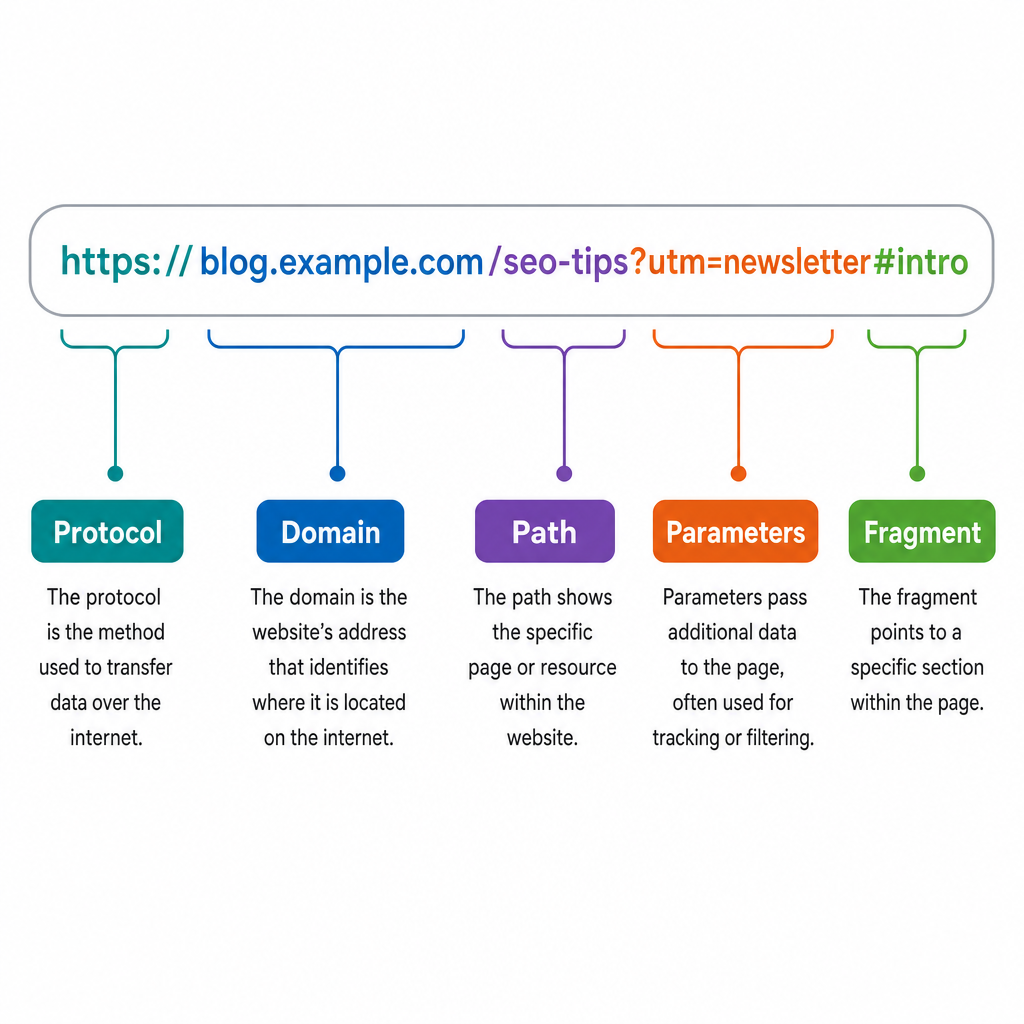
A full URL has up to five parts. Here's one broken down:
https://blog.aiseo.ai/seo-content-tips?utm=newsletter\#intro
| Part | Example | What it does |
|---|---|---|
| Protocol | https:// | Tells the browser how to connect ("s" means encrypted) |
| Domain | blog.aiseo.ai | The website's name |
| Path | /seo-content-tips | The specific page on that site |
| Parameters | ?utm=newsletter | Extra info passed to the page (often for tracking) |
| Fragment | #intro | Jumps to a specific section on the page |
You don't need to memorize any of that. For everyday use, typing the domain is enough: nytimes.com or gmail.com will get you there. The browser fills in the rest.
URL structure also matters if you publish content. Clean, descriptive URLs are one of the signals search engines use to understand what a page is about, and increasingly, they're a signal AI answer engines use too. A messy parameter-stuffed URL is harder to cite, harder to remember, and harder to rank. If you're thinking about how AI engines parse and quote your pages, that starts with structured content built for AI search engines.
Why Browsers Show "Search Google or Type a URL"
Why Browsers Show "Search Google or Type a URL"
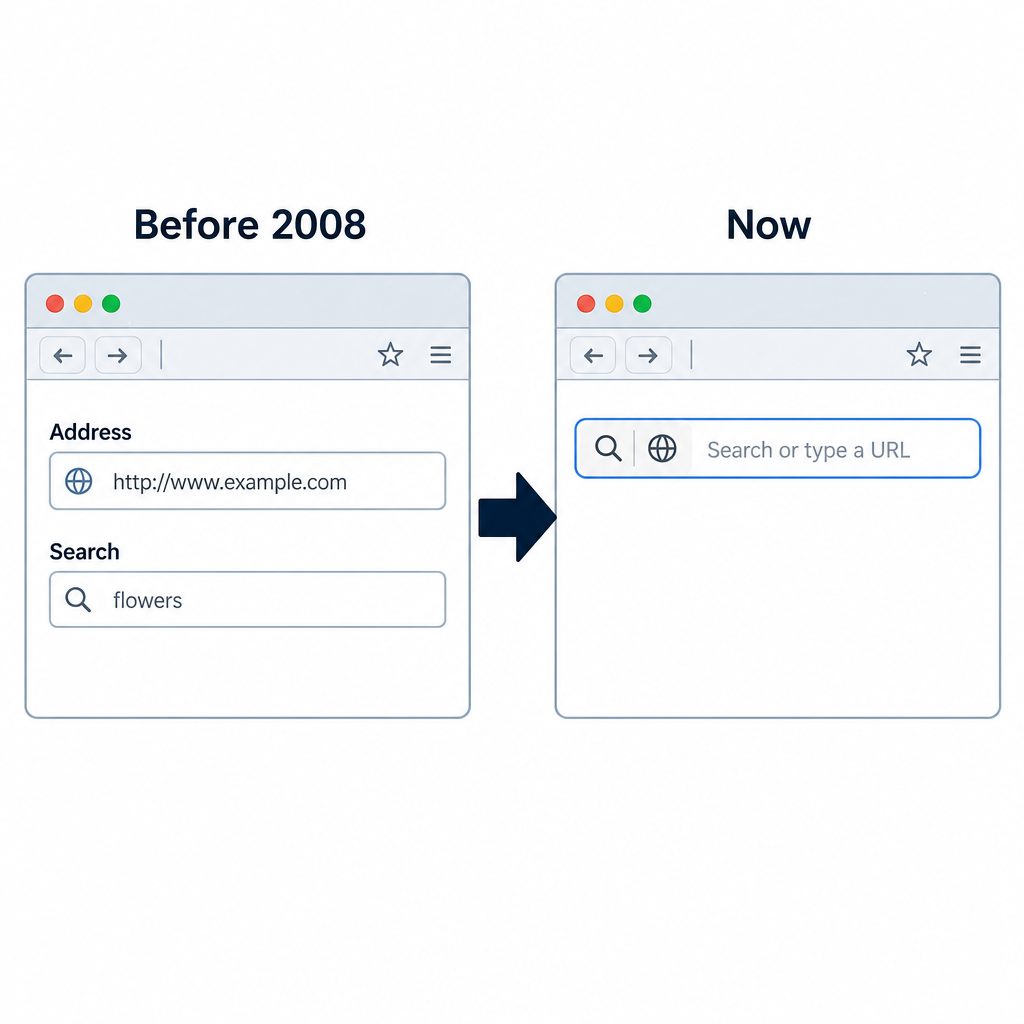
Browsers used to have two separate boxes at the top: one for typing addresses, one for searching. The split made sense in 2002. By 2008, it didn't.
The problem, as Chromium's design documentation explains, is that two boxes forced users to make a decision before they'd even started typing: am I searching or am I navigating? That's a tiny bit of mental friction, but a tiny friction repeated a billion times a day is a real problem. Chrome solved it with the omnibox through one combined field that figures out what you meant from what you typed.
Every modern browser works the same way now, even when they call it something different:
- Chrome calls it the omnibox
- Firefox calls it the Awesome Bar
- Safari calls it the Smart Search field. Apple's documentation describes it as a single field for both searching the web and visiting a site by name or address
- Edge just calls it the address bar
The unified design also reflects how people actually think about getting somewhere on the web. You either know where you're going or you don't. The browser doesn't need to ask which one before you start typing; it can figure it out from the first few characters.
That said, some devices show a slightly different variation like 'search or type web address' instead of 'search Google or type a URL.' The wording depends on your browser, your region, and your default search engine, but the function is the same: one bar, two jobs.
How Your Browser Decides: Search vs. Navigate
How Your Browser Decides: Search vs. Navigate
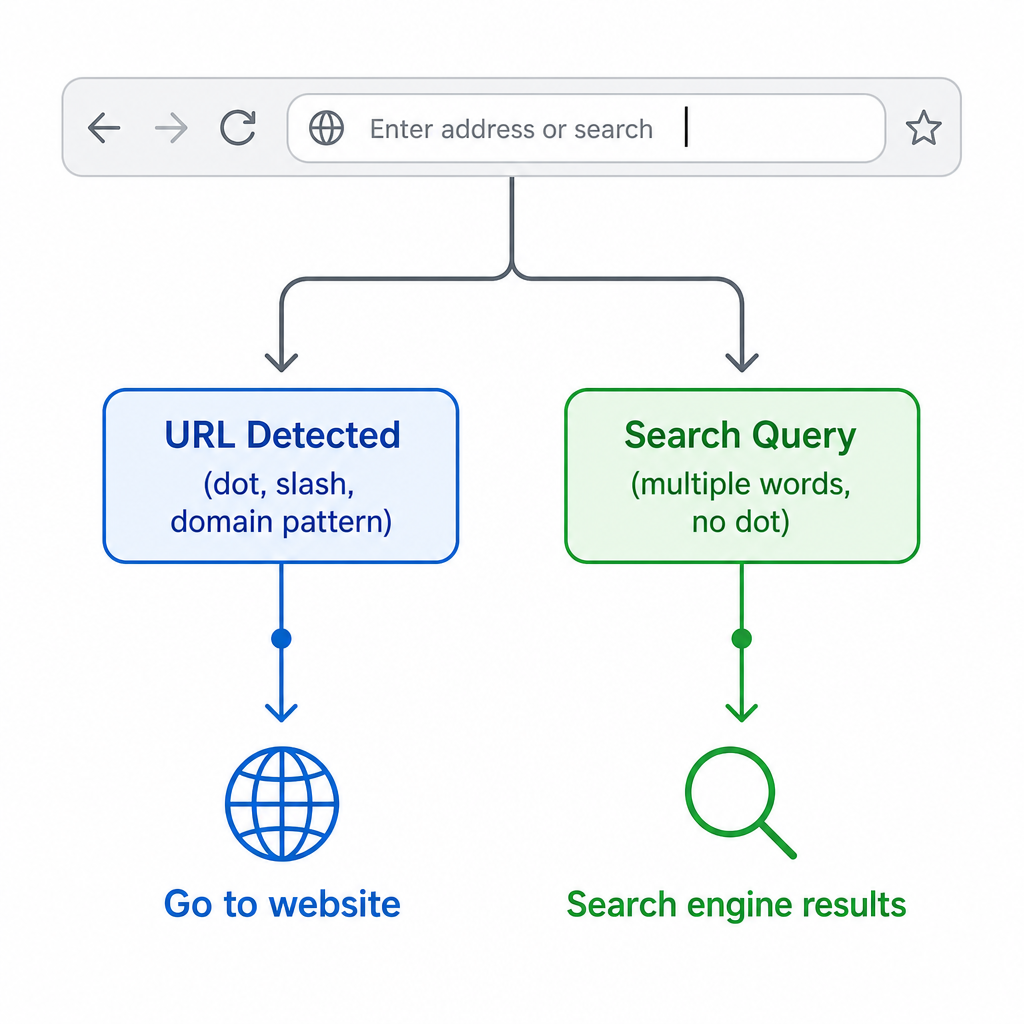
Browsers don't read your mind. They use heuristics, which is just a fancy word for educated guesses based on patterns. The Chromium team breaks the logic down to three core rules:
- Single-word input is ambiguous and usually treated as a search.
- Input that looks like a URL. It has a dot, a slash, or a recognizable domain pattern that gets treated like a URL.
- Multiple words are almost always treated as a search query.
Those three rules cover 95% of cases. Here's how they play out across a wider range of inputs than most articles bother to show:
| What you type | What happens | Why |
|---|---|---|
| amazon | Searches Google for "amazon" | Single word, ambiguous |
| amazon.com | Opens Amazon | The dot makes it a URL |
| how to bake sourdough | Searches Google | Multiple words, clearly a query |
| localhost | Tries to open localhost | Recognized as a local server hostname |
| 192.168.1.1 | Tries to open the address | IP address pattern → treated as URL |
| python | Searches Google | Single word, no dot |
| python.org | Opens python.org | Looks like a URL |
| chrome://settings | Opens Chrome's settings page | Internal Chrome scheme |
| github co | Searches Google | Space breaks the URL pattern |
Single-word inputs are the hardest case. If you've ever typed facebook and gotten a Google search instead of Facebook itself, that's why. It simply means that "facebook" is just a word. The browser doesn't know if you want the website or news about the company. Type facebook.com and the guess becomes obvious.
There's a quick shortcut for this. On Windows and Linux, typing a name plus Ctrl + Enter automatically adds www. and .com in Chrome. On Mac, it's Cmd + Return. So facebook + Ctrl + Enter opens www.facebook.com directly, no domain typing required.
Firefox has its own twist. Its address bar autocompletes URLs from your browsing history, bookmarks, and open tabs. If Firefox recognizes where you're trying to go from the first few characters, pressing Enter takes you there directly.
There's a newer wrinkle in Chrome specifically. If you have AI Mode enabled (it's on by default on most installations as of 2026), the omnibox will sometimes route conversational-looking queries to Google's AI Mode rather than to a normal search results page. More on that below.
What Happens the Moment You Start Typing
What Happens the Moment You Start Typing
The address bar feels instant because the browser starts working before you press Enter. By the time you've typed three or four characters, several things have already happened in the background.
It doesn't matter whether your bar reads 'search Google.com or type a URL' or uses a shorter variation. The autocomplete and suggestion behavior is identical across all phrasings.
Chrome's documentation describes how it pulls suggestions from your browsing history, your bookmarks, your open tabs, and your default search engine simultaneously. When Chrome is confident enough about your destination, it can preconnect to the server in the background. When it's very confident, it can prerender the page before you've finished typing, so the page is already loaded the moment you hit Enter.
Firefox, Edge, and Safari all do something similar, drawing from a mix of history, bookmarks, open tabs, and the search engine's API. That's why:
- Suggestions appear before you finish typing
- The browser seems to learn your habits
- Frequently visited sites float to the top
- Some suggestions feel eerily accurate while others miss completely
Firefox explicitly documents that its suggestions adjust based on how often and how recently you visited a page, and which result you picked the last time. The more you use it, the better it gets.
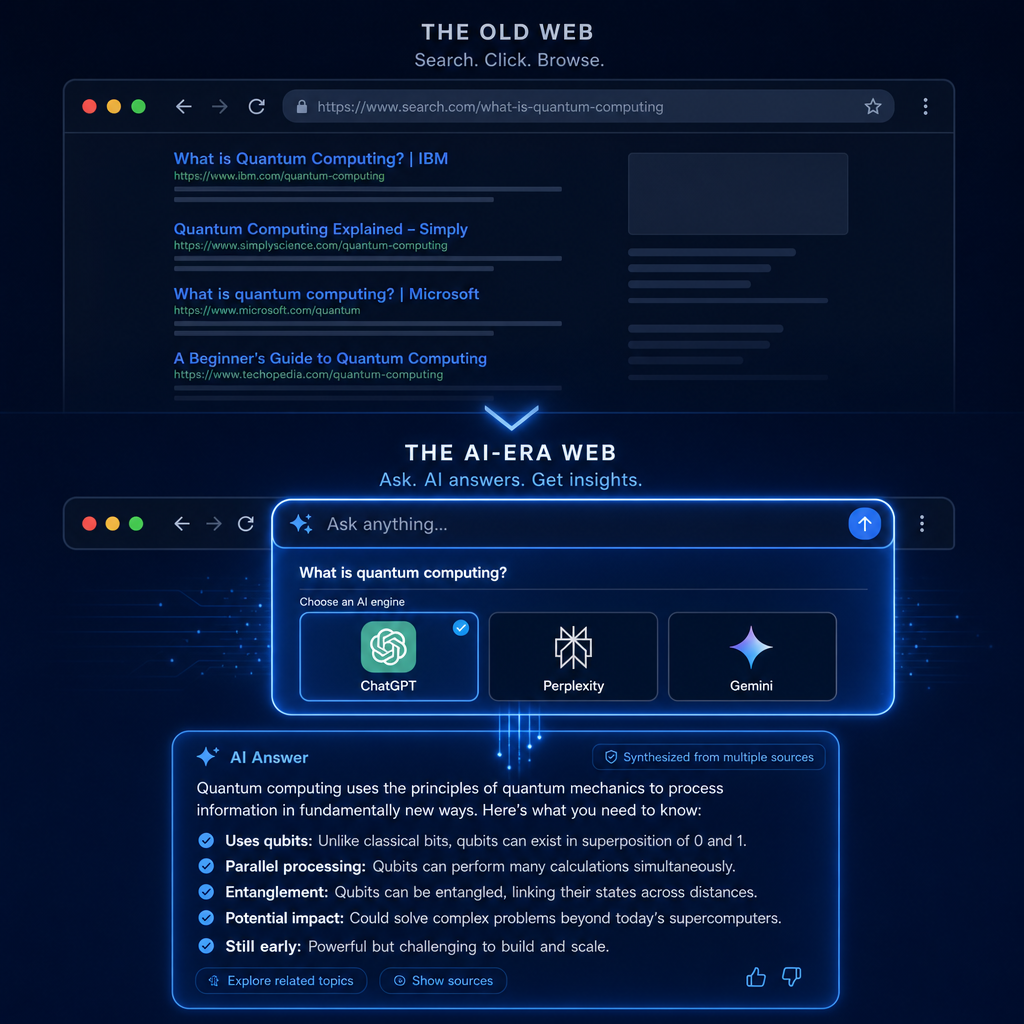
In 2026, this is also where AI suggestions enter the picture. Chrome's omnibox can now show inline AI-generated suggestions and route follow-up questions to Google's AI Mode without ever loading a regular search results page. Edge's address bar offers Copilot suggestions in a similar way. The address bar is no longer just an entry point to search results, but also an entry point to AI answers, depending on your browser, your settings, and what you typed.
That changes a lot for anyone running a website. The first thing a person sees after typing into the bar might not be a list of links anymore. It might be an AI summary that quotes one or two sources. Showing up in those summaries is its own discipline, and it's why AI search visibility is now a separate measurement from traditional search rankings.
When Should You Search vs. Type a URL?
When Should You Search vs. Type a URL?
The mental model is simple: are you looking for something or going somewhere? Three sub-rules cover almost every real-world case.
Use search when you're still looking
Search is the right tool when you're trying to learn something, compare options, troubleshoot a problem, or find a website you don't quite remember. Anytime the destination isn't locked in, search.
- best budget laptop for college
- how to stop Chrome redirects
- italian restaurants connaught place open now
Type a URL when you know where you're going
Direct URL entry is faster when you already know the site. You skip the search step, the search results page, and the click-through.
- gmail.com
- reddit.com
- support.apple.com
Type the URL directly when it's safer
This one's a habit worth building, and almost no other guide on this topic mentions it: for sites that handle money, identity, or login credentials, type the URL or use a bookmark. Don't search for it.
Searching "bank of america" occasionally pulls phishing ads above the legitimate result, especially on mobile. The fake site looks identical, the URL is one character off, and the lookalike collects your login. Typing the exact URL skips that risk entirely. The same applies to email providers, government services, healthcare portals, and crypto exchanges.
Quick rule: if a site holds something you can't replace, type it or bookmark it. Never search for it.
Mental model: three jobs, one bar
By 2026, that bar at the top of your browser is doing three things at once:
| Job | When you use it | What gets you there |
|---|---|---|
| Navigate | You know the site | Type the URL |
| Search | You're still looking | Type words; pick from results |
| Ask AI | You want a synthesized answer | Type a question; AI Mode answers |
The third job didn't exist two years ago. We'll come back to it in a minute.
How "Search Google or Type a URL" Is Changing in 2026 (the AI Search Shift)
How "Search Google or Type a URL" Is Changing in 2026 (the AI Search Shift)
Once you know what the bar can do, it stops being a text field and starts being a command line. A few that are worth memorizing
This is the part of the topic that almost no other guide is covering, and it's the most important section if you run a website or build content for one. The address bar is no longer just a Google bar.
The address bar isn't a Google bar anymore
Google rolled out AI Mode in Chrome's omnibox in late 2025 and expanded it through early 2026. According to 9to5Google's coverage of the February 2026 update, the address bar can now expand into a full AI prompt box with image upload, file upload, and a model picker directly inside the omnibox. It's no longer a button that sends your query to AI Mode. The address bar itself becomes the AI Mode interface.
Edge has done something similar with Copilot. Type a question into Edge's address bar and Copilot can answer in a sidebar, often without opening a search results page at all. Brave has Leo. Arc has its own AI search. Perplexity has a dedicated browser, Comet, where the address bar is essentially a Perplexity prompt by default.
The omnibox is being claimed by every major AI player. The phrase "Search Google or type a URL" is technically still the placeholder text, but "search Google" is increasingly a misnomer because what you're doing might be querying an AI model that synthesizes an answer from sources, not running a Google search at all.
More users are skipping the address bar entirely
There's a parallel shift on the user side. According to Adobe's 2026 search behavior report, 14% of US consumers now say they're more likely to rely on ChatGPT than Google for search. This shift is truly cross-generational, rather than a trend limited to younger users, as the data remains remarkably consistent across all age brackets: 12% of Gen Z, 15% of millennials, 15% of Gen X, and 14% of baby boomers.
The same data shows nearly half of US consumers (49%) have used TikTok as a search engine, and Search Engine Journal's analysis of the data notes that ChatGPT preference is structurally more significant for Google than TikTok preference, because the ChatGPT shift cuts across every demographic.
Translation: a query that used to flow through the omnibox → Google → your site is increasingly flowing through ChatGPT (or Perplexity, or Gemini) and stopping at a synthesized answer. The user never sees your URL. They see whatever the AI engine decides to cite.
What this means if you run a website
While the classic SEO strategy of incorporating meta descriptions, title tags, technical audits, and internal links continues to impact rankings for direct address bar queries, relying on these methods alone is no longer sufficient.
There's now a second layer of optimization that determines whether your content gets cited inside AI answers. It's called Answer Engine Optimization (AEO), and the related discipline of Generative Engine Optimization (GEO) tracks how often your brand actually appears in AI responses across ChatGPT, Gemini, Perplexity, and Claude. The mechanics are different from old SEO:
- AI engines pull from sources that are clearly structured, fact-dense, and credibly cited
- Long, hedging prose performs worse than crisp, declarative answers
- Schema markup matters more than it ever did for ranking
- Brand mention frequency across the open web influences whether AI engines treat you as authoritative
If you want the full picture of how AI engines pick what to quote, AISEO's guide to the best AI SEO tools walks through the specific signals each major AI engine evaluates. And if your content is being written or partly written by AI, running it through humanization before publishing matters because AI engines downweight obvious AI-generated patterns when choosing sources to cite.
The simple version: in 2026, the bar at the top of your browser doesn't just connect users to websites. It connects users to whatever the underlying AI thinks is the most authoritative answer. Whether that's your site or someone else's is something you can actively work on. Tools like AISEO's Answer Engine Optimization suite exist specifically to make a site more likely to be the source AI engines pull from.
How to Fix Browser Address Bar Problems
I typed a URL but it searched instead
This is the most common complaint about the omnibox, and it's almost always one of four causes.
The input was ambiguous. Typing amazon is ambiguous. Typing amazon.com is not. The Chromium team's docs are clear that single words are the hardest case for the heuristic and often default to search behavior. Add a dot.
Autocomplete grabbed a search suggestion. Sometimes the browser highlights a search suggestion above the URL you intended. Both Chrome and Firefox let you delete bad suggestions. You can simply highlight the suggestion and press Shift + Delete on Windows/Linux or fn + Delete on Mac.
Your default search engine or extensions changed. Check Settings → Search engine. Firefox warns explicitly that extensions can change your default search engine without making it obvious. Chrome warns that if changes won't stick, malware may be involved.
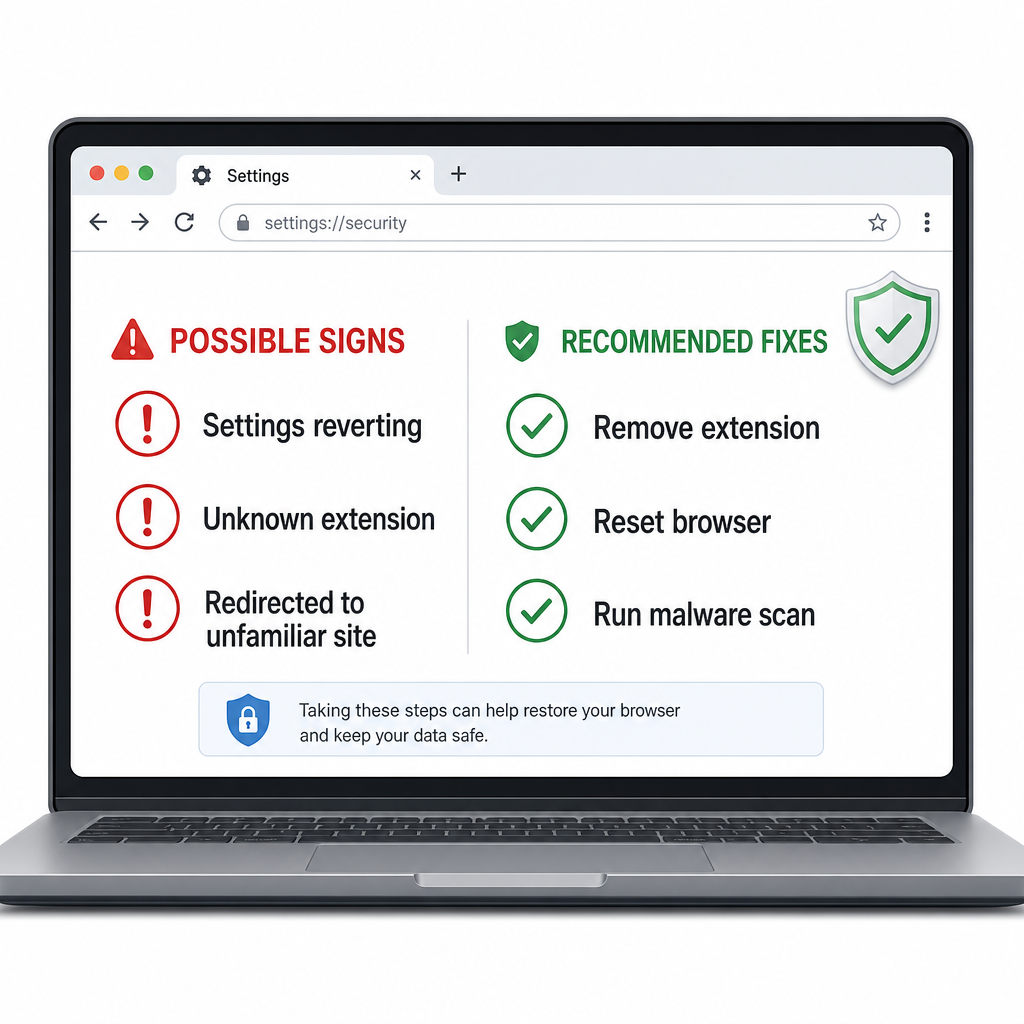
Your browser may be hijacked. Firefox's search hijacking guide covers the symptoms: home page changes you didn't make, a search engine you can't remove, redirects to unfamiliar sites, toolbars or extensions you didn't install. If that's happening, the fix isn't a setting change. You'll need to perform a browser reset and a malware scan.
The fix sequence:
Type the full domain (example.com), not just the bare word
Remove bad suggestions from the address bar
Check your default search engine in Settings
Disable or remove suspicious extensions
Reset browser settings if the problem persists
Run a malware scan if reset doesn't hold
Why your settings keep changing on their own
Take this seriously. Self-changing settings are how the worst browser malware announces itself. The most common warning signs:
- Your home page changed without your input
- Your default search engine switched to something unfamiliar
- Typing a real URL redirects you somewhere unexpected
- A toolbar or extension appeared out of nowhere
- You can't save your browser settings because they revert each time you close the browser
What to do, in order:
Open Settings → Extensions and remove anything you don't recognize
Reset your browser to defaults (every browser has this option in Settings)
Run a reputable malware scanner (Malwarebytes, Microsoft Defender, or your existing antivirus)
If you're on a work or school device, check whether IT is managing your browser. That's because sometimes locked settings are policy, not malware
Chrome documents that managed devices can have admin-controlled search engine settings, so a locked setting on a work laptop isn't necessarily a hijack. In most cases, it's probably your IT department.
How to turn off search suggestions and reduce tracking
There's a privacy tradeoff baked into the omnibox. Chrome states that when "Improve search suggestions" is enabled, what you type is sent to your default search engine as you type, along with your IP and relevant cookies. Edge sends typed text to the default provider for instant suggestions. Firefox confirms the same. Safari notes that suggestions may record your search terms.
If that bothers you, turn suggestions off in your browser's settings. You'll lose autocomplete, but nothing about the bar will get sent until you press Enter.
Firefox makes this easier than the others: it disables search suggestions by default in Private Browsing, and Edge does the same in InPrivate mode.
How to Change Browser Settings (Step-by-Step, 2026)
There's no single switch labeled "remove Search Google or type a URL." What you can control: the default search engine, what loads on startup, the new tab page, and how aggressively the bar offers suggestions. Here's the path in each major browser.
Chrome
- Default search engine: Settings → Search engine. Chrome lets you swap between Google, Bing, DuckDuckGo, Yahoo, Ecosia, and others.
- Startup page: Settings → On startup. Pick a specific page, restore tabs from last time, or open a new tab page.
- New Tab page: Open a new tab and click "Customize Chrome" in the corner. If an extension is controlling the New Tab page, Chrome notes you'll see that info in the footer.
- Suggestion privacy: Settings → You and Google → Sync and Google services → "Improve search suggestions."
- Disable AI Mode in the omnibox: Type chrome://flags into the address bar, search for "AI Mode Omnibox entrypoint," and set it to Disabled. Chrome moves these flags around between versions, so if you don't see it, search for any flag with "AI" in the name.
Firefox
- Default search engine: Settings → Search. Firefox lets you switch defaults, remove engines, and control suggestion behavior.
- Homepage: Settings → Home. Choose Firefox Home, custom URLs, or a blank page.
- New Tab: Same Settings → Home menu lets you show or hide shortcuts, recent activity, and other panels.
- If settings keep reverting: Firefox's search hijacking guide walks through the diagnostic steps and includes a Refresh Firefox option that resets without losing bookmarks or passwords.
Microsoft Edge
- Default search engine: Settings → Privacy, search, and services → Address bar and search. Microsoft notes you may need to perform a search with a non-default engine first before it appears in the dropdown.
- Home page: Settings → Start, home, and new tab page.
- Suggestion behavior: Edge sends typed text to your default provider for suggestions but turns automatic suggestions off in InPrivate mode.
- Copilot in the address bar: Settings → Sidebar → Copilot. Toggle off if you prefer the bar without AI suggestions.
Safari (Mac and iPhone)
- Search engine: Safari → Settings → Search. Apple lets you set a separate engine for Private Browsing.
- Suggestion controls: Same Search settings panel — toggle Include Search Engine Suggestions, Include Safari Suggestions, Enable Quick Website Search, and Show Start Page.
- Homepage: Safari → Settings → General lets you choose what new windows and tabs open with.
- On iPhone: Settings app → Safari covers the same controls, with a separate Apple Intelligence section that affects how AI features behave inside the bar on supported devices.
Power-User Address Bar Shortcuts
Once you know what the bar can do, it stops being a text field and starts being a command line. A few that are worth memorizing:
| Shortcut | What it does |
|---|---|
| Ctrl/Cmd + L | Focus the address bar instantly. Works in Chrome, Firefox, Edge, Safari, and Brave. |
| Ctrl/Cmd + Enter | Auto-add www. and .com to whatever you typed. So github + Ctrl + Enter → www.github.com. |
| @tabs, @bookmarks, @history | In Chrome, type one of these to scope your next query to just that source. @tabs is a lifesaver if you have 40 open tabs. |
| Tab after a known site name | Search inside that site directly from the bar. amazon + Tab + your search term searches Amazon. Works for any site you've added in Chrome's site search settings. |
| *, %, $, ? | Firefox prefixes: * for bookmarks only, % for open tabs only, $ for URL matches only, ? for search suggestions only. |
| Quick Website Search | Safari's version of site-scoped search. Visit a site's search page once and Safari remembers the pattern for next time. |
| chrome://flags, about:config, edge://settings | Internal browser pages. You can type these directly into the bar. Most settings have a chrome:// or edge:// shortcut that's faster than clicking through menus. |
How Browser Search Behavior Affects Your SEO (and AEO)
Most articles about "search Google or type a URL" stop at the browser explanation. There's a bigger picture if you publish content for a living.
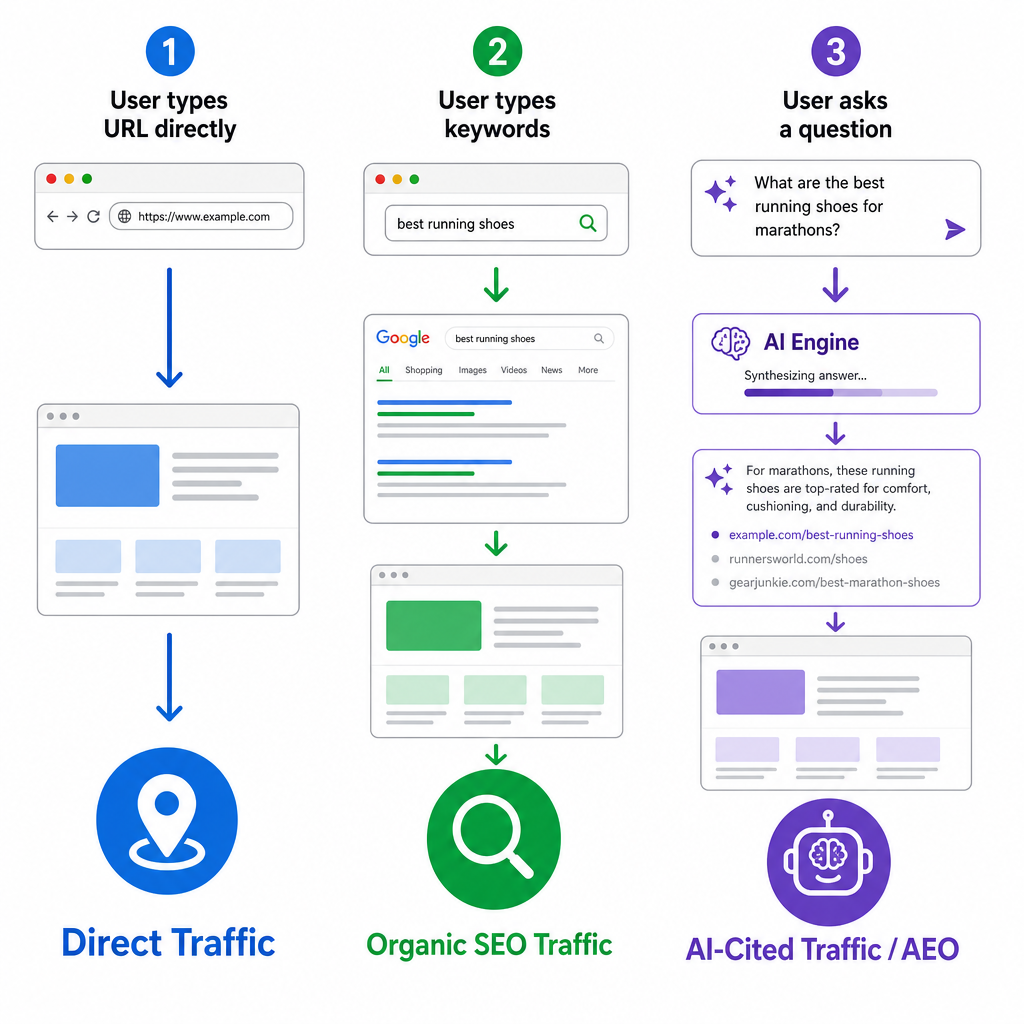
The bar at the top of every browser routes traffic three different ways now, and each one is a different opportunity (or risk) for a website.
| User behavior | Traffic type | What you can do about it |
|---|---|---|
| Types your URL directly | Direct traffic | Brand work — make your URL memorable, easy to type, and trusted |
| Searches keywords | Organic search traffic | Traditional SEO — intent mapping, on-page, technical, links |
| Asks a question (AI Mode, ChatGPT, Perplexity) | AI-cited traffic + brand mentions inside AI answers | AEO + GEO — structure for citation, schema, brand entity strength |
If a person types notion.com, Notion already won. There's nothing you can do to intercept that. But if a person searches "best note-taking app for teams," every well-optimized product has a real shot. And if a person asks ChatGPT "which note-taking app should my team use," the answer is whichever brand the model treats as authoritative, which is a function of how often that brand is cited and how clearly its content is structured.
That third path is the one most marketing teams haven't adapted to yet. The companies showing up in AI Overviews and ChatGPT citations in 2026 are running two parallel programs:
- A traditional SEO program (rankings, content, technical fixes) for the search-results path
- An AEO/GEO program (citation-friendly structure, schema, brand entity work, AI visibility tracking) for the AI-answer path
If you're only doing the first one, you're leaving the third channel unmanaged. AISEO's AI SEO platform is built specifically to cover both. It tracks how your content performs in AI search, identifies which pages AI engines actually cite, and flags structural changes that increase citation likelihood. The free AI SEO tools let you check where you stand before committing to anything, and the AI Humanizer makes sure AI-assisted content reads naturally enough to qualify as a citation source in the first place.
Frequently Asked Questions
Is "Search Google or type a URL" a virus?
No. It's standard browser behavior. Every modern browser shows a placeholder phrase like this in the address bar to indicate that the bar accepts both searches and URLs. The phrase becomes a concern only if your search engine changes without your input, your homepage gets replaced, or your browser starts redirecting you to unfamiliar sites. Those are signs of a hijacked browser, not a problem with the placeholder text itself. Whether your browser says 'search Google or type a URL' or just 'search or type URL,' the function is identical.
Why does typing "Facebook" search Google instead of opening Facebook?
Because facebook is a single word with no dot, and single words are ambiguous to the omnibox. The browser doesn't know whether you want the website or news about the company, so it defaults to a search. Type facebook.com and it goes straight to the site. On Windows, you can also type facebook and press Ctrl + Enter, and Chrome will auto-complete that to www.facebook.com. On Mac, it's Cmd + Return.
Can I remove the "Search Google or type a URL" message?
There's no single setting that removes the phrase itself because it's placeholder text built into every major browser. What you can change is your default search engine, your startup page, and your new tab page. Most of the time, when people ask how to "remove" the message, what they really want is to switch to a different search engine or stop seeing Google branding. All four major browsers let you do that in Settings. The exact phrasing varies: some users see 'search or type web address' instead, but no variation can be fully removed because it's built-in placeholder text.
Does typing in the address bar send my data to Google?
It can send data to your default search provider, not necessarily Google, when search suggestions are enabled. Chrome, Edge, Firefox, and Safari all document that typed text gets sent to the search engine to power autocomplete suggestions, along with your IP and any relevant cookies. If that bothers you, disable the suggestion feature in your browser's settings. The bar will still work. However, it just won't send anything until you press Enter.
What's the difference between a URL and a search term?
A URL is a specific web address, like bbc.com. A search term is a question, phrase, or topic, like the latest world news. The browser looks at what you typed for clues, such as dots, slashes, multiple words, to guess which one you meant. Generally: dots and slashes mean URL, multiple words or no dot mean search.
How do I search inside a specific website from the address bar?
Each browser handles this slightly differently. Chrome supports site search shortcuts. You can type the site name, press Tab, then your query. Firefox uses prefixes like @amazon. Safari's Quick Website Search remembers search patterns for sites you've searched before. Edge supports site shortcuts via custom search engines in settings.
Can I use a different search engine instead of Google?
Yes, in every major browser. Chrome: Settings → Search engine. Firefox: Settings → Search. Edge: Settings → Privacy, search, and services → Address bar and search. Safari: Safari → Settings → Search. You can switch to Bing, DuckDuckGo, Yahoo, Ecosia, Brave Search, Kagi, or any custom engine that supports the standard search URL format.
What browser is best for privacy when using the address bar?
All major browsers let you reduce tracking by disabling search suggestions. Firefox stands out because it disables search suggestions by default in Private Browsing. Brave, LibreWolf, and Mullvad Browser are stricter still. Pairing one of these with a privacy-focused search engine like DuckDuckGo, Brave Search, or Mullvad Leta gives you the most privacy. The tradeoff is fewer suggestions and slower autocomplete.
Why does my Chrome address bar show AI suggestions now?
Because Google added AI Mode directly into Chrome's omnibox in late 2025. Conversational-looking queries get routed to Google's AI Mode by default on most installations. You can disable it by going to chrome://flags and turning off the "AI Mode Omnibox entrypoint" flag, though Google moves these settings between versions, so the exact name may shift.
Is the omnibox the same as the address bar?
Yes, "omnibox" is Chrome's name for the combined address-and-search bar at the top. Firefox calls the same thing the Awesome Bar, Safari calls it the Smart Search field, and Edge just calls it the address bar. They all do the same job: accept a URL or a search query and figure out which one you typed.
Can ChatGPT or Gemini replace the address bar?
For some queries, they already have. If you ask ChatGPT or Gemini a research question, you often get a synthesized answer with cited sources; no list of links to click through. For navigational queries ("open Gmail," "go to my bank"), the address bar is still faster and safer. The pattern most people are settling into is using the address bar for navigation and quick lookups, and AI assistants for research and synthesis. The two coexist rather than one replacing the other.
One Box, Three Jobs Now
"Search Google or type a URL" looks like a small phrase, and most of the time it is. The bar at the top of your browser handles two things: going somewhere you already know, or finding something you don't.
In 2026, it handles a third: routing questions to AI engines that synthesize answers instead of returning links. That third path didn't exist when most articles about this topic were written, and it's the one that matters most if you run a website. Direct traffic is yours. Search traffic is contestable. AI-cited traffic is decided by whether the model considers your content authoritative enough to quote.
If you're publishing content and want to show up in all three paths, the work splits across traditional SEO and the newer disciplines of AEO and GEO. AISEO's Answer Engine Optimization tool handles the AI-citation side specifically. It restructures content so AI models can clearly understand, quote, and feature it.
If you're starting from scratch, the free AI SEO tools are a no-cost way to see where your site stands across both Google and AI engines before committing to anything. Get started with AISEO if you want both layers handled in one place.
Once you understand what the phrase actually means, it stops being a small grey line of text. It's the front door to the entire web, and increasingly, to whoever the AI thinks is the best answer.
About the Author

Dilyar Buzan is the founder and CEO of AISEO.ai, an AI-native SEO platform. With a background in AI from the University of Amsterdam, Dilyar specializes in Generative Engine Optimization (GEO), Answer Engine Optimization (AEO), and AI-driven content strategy, helping brands earn visibility across ChatGPT, Perplexity, Google AI Overviews, and traditional search. He's also co-founder of Sceneform.ai, an AI content platform for brands and creators.